
Where can I find my report?
Find it in the email we send you, or sign in to your account.
Your report is in two places: the email we send you when it is ready, and your WhiteBridge account when you are signed in.
Open your report
- Sign in with the account you used to buy the report.
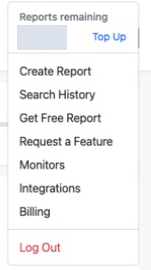
- Open the account menu in the top-right corner and choose Search History.
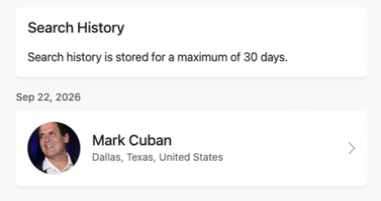
- Find the report by name and date, then select the arrow on its row to open it.
- Prefer email? Search the inbox you used for the purchase, including the spam or junk folder, for the report email.
Is your Search History empty?
If your Search History is empty, you may not have generated a report yet, or you may be signed in to a different account. To get started, see How do I generate a report?